Cash In
Top up your account for through select banks, convenience store, groceries, malls, payment centers and more
Featured
View all cash in partners
Cash in with no fees? We got it for you! Go cashless by cashing in for FREE at SM Department Store.

Libre lang mag-cash in to your Maya account sa pinakamalapit na Palawan Pawnshop and Palawan Express

Go cashless on your grocery purchases by cashing in for FREE at Robinsons Supermarket via Cashier
Maya supports these cash in partners.
Select one to find out how.




.png)
.png)









.png)


















.png)




























No cash in partners match your search.
How to Cash In
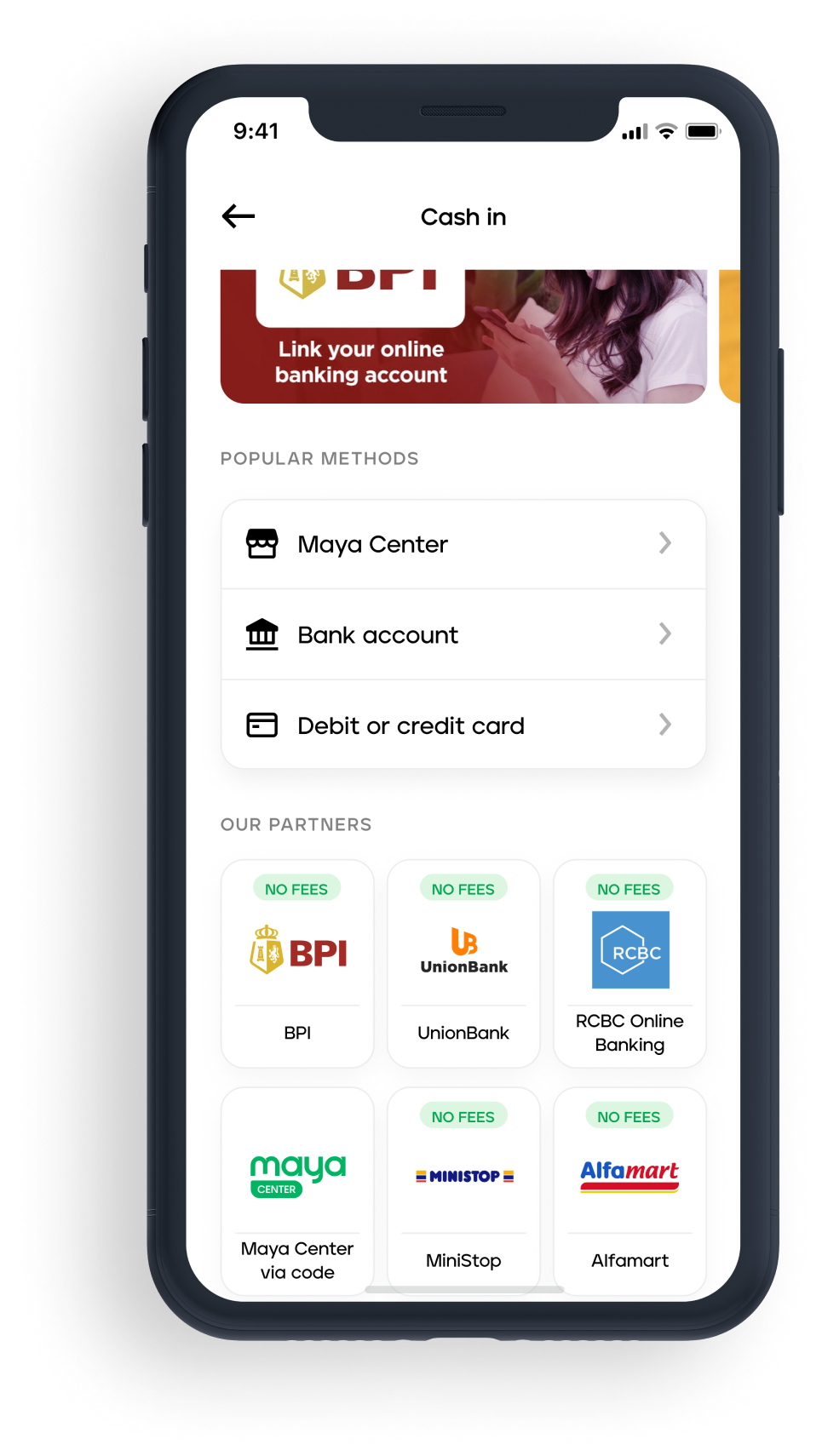
Requires an upgraded Maya account
- Ensure your Maya app is upgraded to the latest version.
- Open your app and select the “Cash In” icon
- Tap on “Bank Account” then choose your desired bank
- Log into your bank account and complete the authentication requirements by the bank
- Select the source account to be linked and click “Authorize“
- Once confirmed and linked, enter the amount you want to Cash In then tap “Continue”
- Complete authentication, and your Maya Wallet will be credited
Must be visiting a Maya partner merchant*
- Open the Maya app and tap Cash in
- Choose your preferred over-the-counter partner (e.g., convenience store, mall, supermarket, or remittance center)
- Enter the amount to cash in and tap Continue to receive your cash in code
- Present your cash-in code and pay at the counter
- Wait for a confirmation that the amount has been credited to your Maya Wallet before leaving
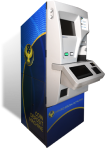
Must be visiting a TouchPay Kiosk
- Open the app and tap the “TouchPay” icon
- Enter your desired Cash in amount in the app
- Wait to receive your 7-digit code via SMS
- On the TouchPay kiosk tap “e-money” and then “Maya”
- Type in the 7-digit code and your desired Cash In amount
- Wait for an SMS confirmation to confirm your successful transaction
You can cash in to your Maya account from another bank app by performing a bank transfer via InstaPay or PESONet. Here's how:
- Log in to your other bank app and initiate a transfer
- Choose Maya Philippines, Inc./Maya Wallet as the destination
- Enter your registered name in your Maya account as the account name
- Enter the 11-digit mobile number registered to your Maya account as the account number
- Enter the rest of the transaction details
- Choose InstaPay or PESONet as the transfer method
- Review your details and complete the transaction
What's the difference between InstaPay and PESONet?
- InstaPay lets you transfer funds between accounts in real time.
- PESONet lets you transfer larger amounts following a cutoff schedule. For details about the cutoff schedule,click here
Please note that InstaPay and PESONet transfer limits and fees may apply.
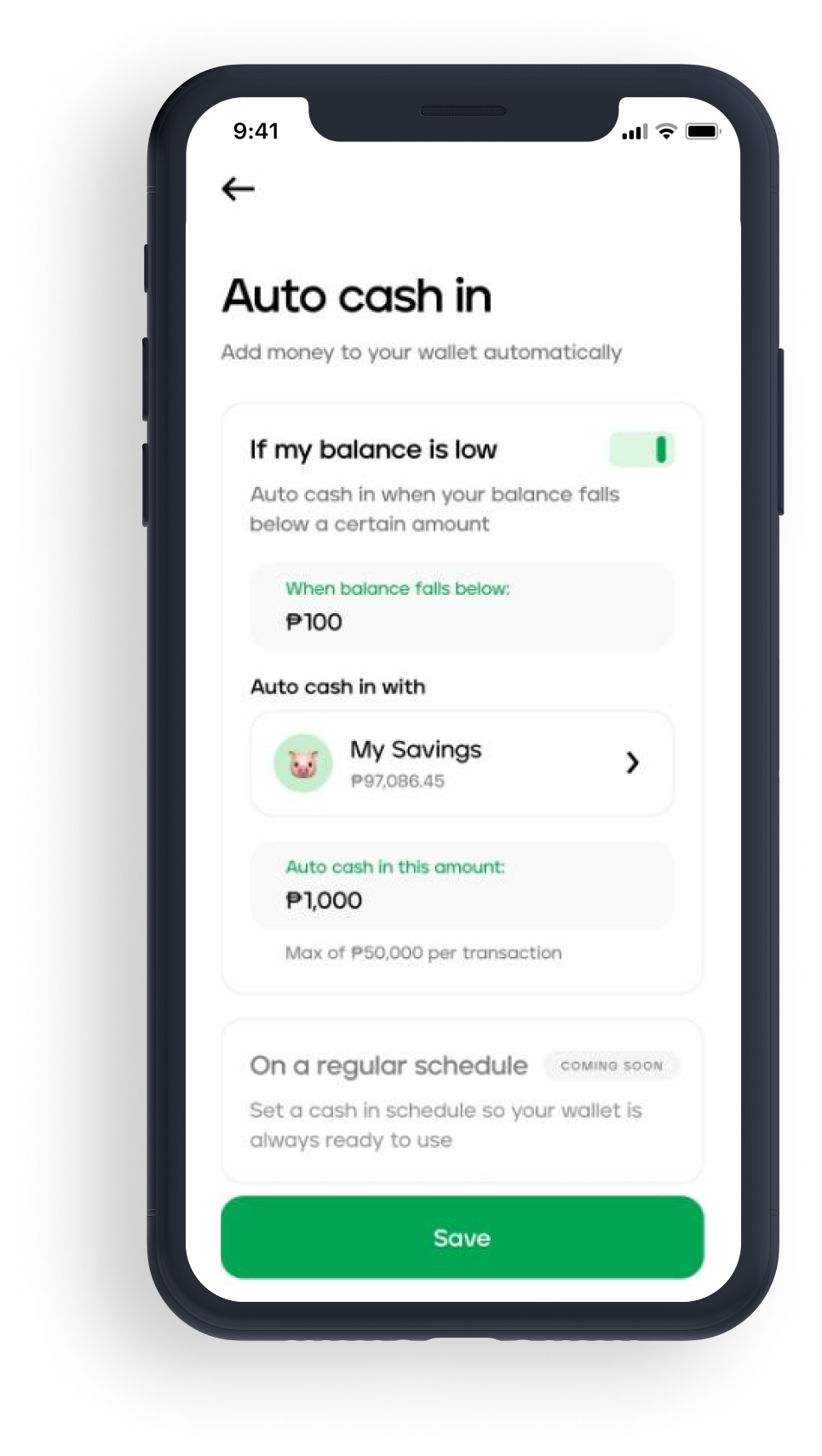
How to Auto Cash In
- On your Wallet dashboard, tap 'Options' under your Wallet balance
- Tap 'Auto cash in'
- Set the Wallet amount that triggers Auto Cash In
- Choose your fund source(for now, only Maya Savings is available)
- Set the Auto Cash In amount and hit ‘Save’

Frequently Asked Questions
You've got questions? We've got answers.
Need more answers?
Go to Help and SupportAs long as you have not reached the Php 8,000.00 monthly threshold for FREE Cash In, you will still receive your cash in fee refund.
For example:
On Day 1 you add Php 5,000.00 to your Maya account via 7-Eleven and was charged 2% or Php 100.00. The Php 100.00 cash in fee will be refunded to your account once the funds have been successfully credited to your account since you have not yet reached the Php 8,000 monthly threshold.
On Day 2, you decide to add another Php 4,000 via 7-Eleven to your account, 7-Eleven will initially charge you with a 2% cash in fee of your total amount or Php 80.00. Your new cash in transaction brings the total amount you have added to your account to Php 9,000 for the month, which means you have exceeded the Php 8,000 monthly threshold.
With this, Maya will only charge you with the 2% cash in fee of the amount that has exceeded the Php 8,000 monthly threshold, which is Php 1,000. You will receive back the Php 60.00 of the Php 80.00 cash in fee charged by our over-the-counter cash in partner. To illustrate:
Total funds added to your account on Day 1 and Day 2:
(Day 1) Php 5,000 + (Day2) Php 4,000 = Php 9,000 (Total amount added to your account)
This means you have exceeded the monthly Php 8,000 threshold by Php 1,000.
Only the amount that exceeds the limit when you added money to your account on Day 2 will be subject to the 2% convenience fee:
Php 1,000 x 2% = Php 20
Php 60.00 of the cash in fee on Day 2 will be credited back to your account.
All channels with convenience fees are applicable for cash in convenience fee refund.
Refund for cash in fees for users who have not reached the monthly Php 8,000 cash in threshold should be done within 1-3 business days.
If the amount is not credited to your Maya account after 3 business days, please feel free to reach us via the Maya Help Center at https://www.maya.ph/contact-us
The 2% cash in service fee serves as our processing fee when you cash in via over-the-counter channels, but you will only be charged with it when you have reached your Php 8,000 monthly cash in threshold.
We highly encourage people to use digital channels such as online and mobile banking for a safer and more convenient cash in experience. As much as possible, physical cash handling during our current public health situation is strongly discouraged.
You can cash in to your Maya account with these easy steps:
- Log into your Maya App.
- Tap “Cash In”.
- Select the Cash In Partner of your choice.
- Follow the instructions given for the Cash In partner of your choice.
The fee is 2% of the total cash in amount.
Cash In via 7-Eleven:
For example, you want to add Php 1,000 to your Maya account:
> Php 1,000.00 x 2% = Php 20.00
> Php 1,000 + Php 20.00 = Php 1,020.00
You will need to pay Php 1,020.00 to the cashier at 7-Eleven for this cash in transaction. Php 1,000 will be credited to your Maya account and the Php 20.00 will be your cash in convenience fee.
Assuming that you have not reached the Php 8,000.00 monthly threshold, the Php 20.00 convenience fee will be credited back to your account via Maya refund.
However, if you have reached the threshold for the month, the Php 20.00 will be your convenience fee and will not be refunded.
Cash in via other channels:
For example, you want to add Php 1,000.00 to your Maya account: You will pay Php 1,00.00 for this cash in transaction. Php 990.00 will be credited to your Maya account and the Php 10.00 cash in convenience fee will be deducted to your cash in amount.
> Php 1,000.00 x 2% = Php 20.00
> Php 1,000.00 less Php 20.00 = Php 980.00
Assuming that you have not reached the Php 8,000.00 monthly threshold, the Php 20.00 convenience fee will be credited back to your account via Maya refund.
However, if you have reached the threshold for the month, the Php 20.00 will be your convenience fee and will not be refunded.
You can cash in up to Php 100,000.00 if your account is fully upgraded. If you wish to upgrade, you can visit https://www.maya.ph/upgrade to find out how.
To track your account limits:
- On your Maya app, tap the menu page at the top left of your screen
- From the menu, choose Account Limits
- You will be able to view your Daily and Monthly limits of your account Your monthly limits will reset on the first day of the following month while daily limit resets on the next day.
Our officers will never ask you for the following:
Password or One-Time password Your PIN
Complete Card Number with CVV and Expiry Date
IMPORTANT: If anyone asks any of these information from you, you can report them to our hotline at (632) 8845-77-88 or Toll Free: 1800-1084-57788. You should also immediately change your passwords and your PINs.
Currently, you can link one account per source bank for the Cash-in via Bank feature. If you have multiple accounts with the same source bank, you’ll need to choose which one you’d like to link. If you want to link a different account from the same source bank, simply unlink the existing source bank account first, then link the new one.
No. If your bank account is linked to another Maya account, please un-link the bank account in the said Maya account and re-link to the desired Maya account.
If there is a delay in your cash in, kindly coordinate with the Cash In center you used:
Via Bank/Financial Institution
You can contact your bank/financial institution or issuing bank directly. A possible cause of the delay is due to system interruptions. When this happens, crediting happens within three (3) banking days as both banks and Maya perform daily reconciliation.
Via Kiosk
You can call the customer support of the self-service kiosk to report the issue. Specific contact details for each kiosk can be found in the receipt generated by the machine or you can refer to these details:
Touchpay - (02) 8 232 8947 / (02) 8 459 7929 / Email: custcare@meps.ph Pay&Go - You may send your concern via the Facebook page http://www.facebook.com/payandgoph/ Zoompay - (02) 833 04148 / (632) 929 184 6001 / Email: zoompay.hd@xytrixcorp.com.ph
Via Over-the-Counter (7-Eleven, Ministop, AlfaMart, SM, Robinsons, etc)
You can follow up with the branch where you made the cash in transaction. Make sure to keep your receipt as your proof of the transaction.
Via Credit/Debit Card
Your issuing bank account will proactively process the refund within three (3) business days. If no refund is reflected to the source account within three (3) business days, you may call our hotline at (02) 8-845-7788.
Related guides


Upgrade Your Account
Open a savings account, personalize your experience, bump your wallet limit and more

Email verification
Secure and recover your account by verifying your email
It’s everything and a bank. What more could you need?
For existing PayMaya users, update your app to Maya